
Your Minecraft host since 2012












Your Minecraft host since 2012
Find your server's panel, your backups and your invoices.
No account yet? Create an account
No bank card required: you only pay when you order a server.
Already have an account? Log in
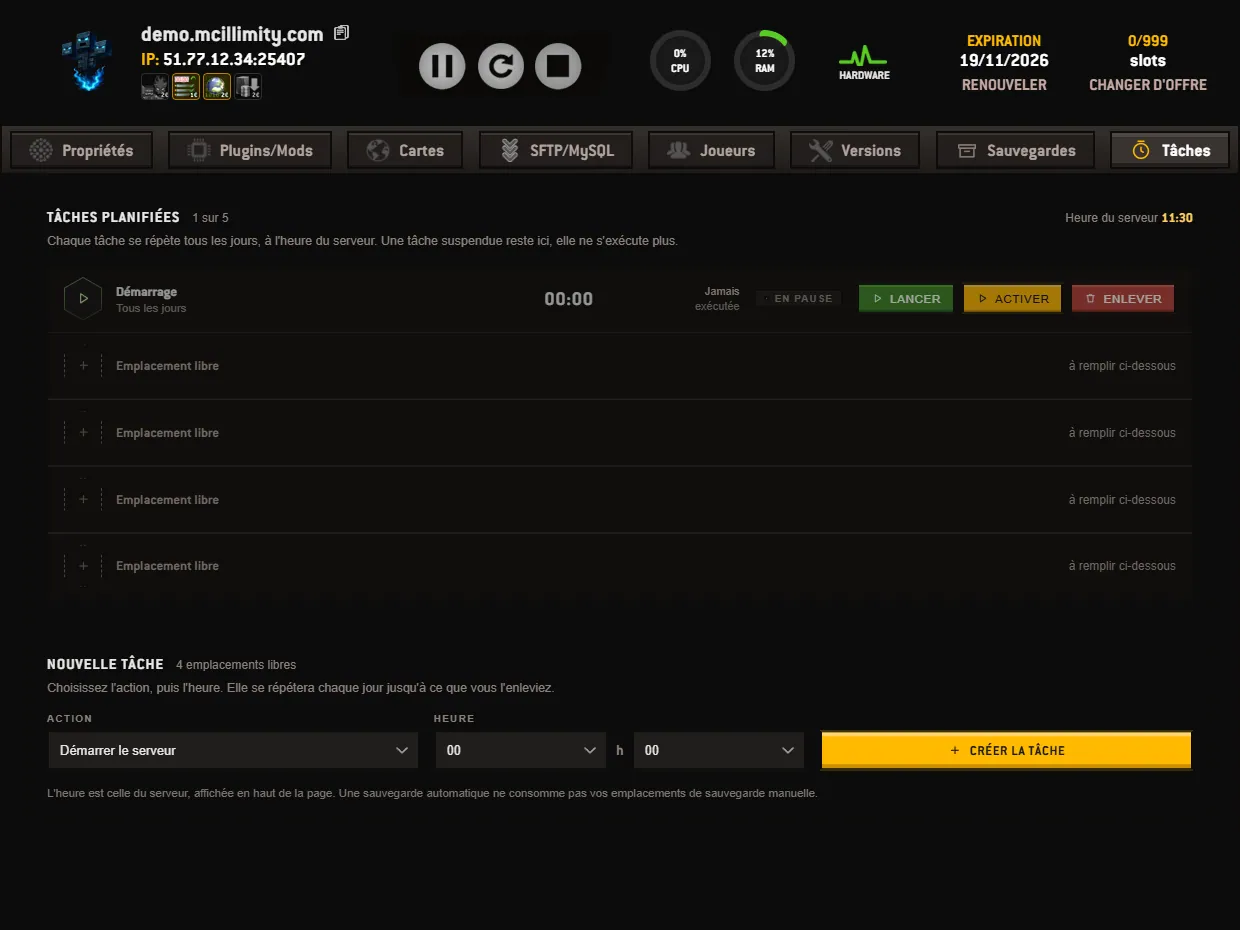
The Scheduled tasks tab asks the server to repeat an action every day, at a set time, without anyone sitting in front of the screen. It is an option at 1 euro per month: the tab appears in the ribbon the day you take it, and it disappears the day you stop it. The other tabs of the ribbon do not depend on this option.
The top banner gives two pieces of information before anything else: the number of tasks already set against the number of slots, and the server time. That time is the one that counts, not the one on your computer. A task set for 04:30 runs at 04:30 for the server.
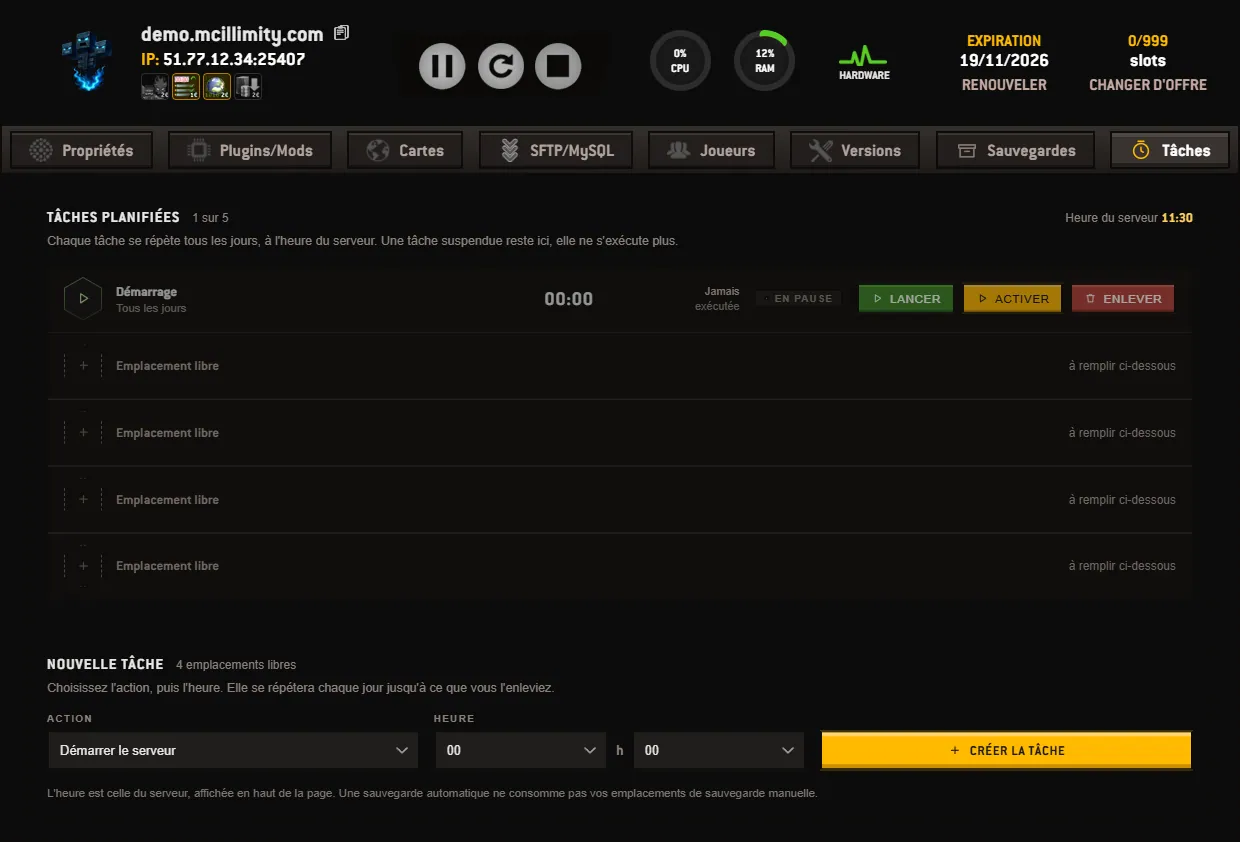
The Action menu offers five things to do, and nothing else:
To create one, go down to the New task box. Choose the action, then the time in the two menus, hours on the left and minutes on the right. The Command field only shows up if you have chosen « Run a command »: you write the command alone there, following the greyed-out example in the field. The CREATE TASK button adds it to the list, and it will repeat every day until you remove it.
Each task then takes up one line, with its own icon and colour: the action is recognised before it is even read. The line shows the trigger time, the date of the last run (or the word Never as long as it has not run yet), and a badge that says Active or Paused. For a command, the line shows the command itself; for the four other actions, it simply reminds you that it runs every day.
Three buttons end the line. RUN executes the task right away, without waiting for the scheduled time: this is the way to check that it does what you think it does. SUSPEND pauses it: it stays in the list, greyed out, but it no longer triggers, and the button becomes ACTIVATE to put it back into service. REMOVE deletes it and frees its slot.
As soon as a first task is set, the slots still free are drawn as outlines below it: the remaining space is visible without having to count. As long as the list is empty, the box shows a welcome message instead. When all the slots are taken, the form gives way to a notice inviting you to remove a task before setting another one. Suspending is not enough: a paused task keeps its slot.
Two final points. A backup triggered by a task does not use up your manual backup slots, the ones you keep for the eve of an update, as explained on the backups page. And if you are unsure about the time, pick the one when your server is empty. The full tour of the screens is on the page the panel, screen by screen, and support answers in French from the same customer area.
 Continue with Google
 Continue with Discord