












 Continue with Google
 Continue with Discord
Home·Transfer
SWITCHING HOSTSTransfer your server
Your world is not converted, it is copied. Here is the exact order of operations to switch hosts without losing anything along the way.
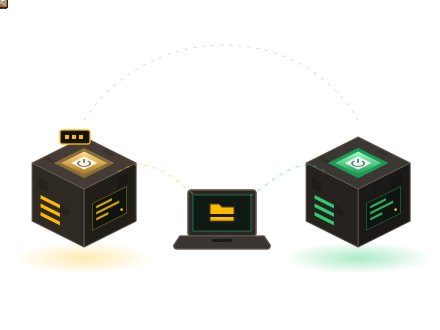
A Minecraft server is a folder of files. Transferring it means downloading that folder from your current host, then uploading it to us. FTP access on each side is enough: the panel provides ours, with an online file editor.
The risk is not the copy, it is the order in which you do it. A world opened by a version newer than its own is converted, with no way back. The rule comes down to five steps: back up, note the version, recreate identically, check, and only then move the players over.
Run a full backup with your current host and download it to your own computer. Until that copy is on your machine, do not touch anything else. It is your only safety net if things go wrong later.
The transfer, from start to finish
Downloading the world is the long part: how long it takes depends on your connection, not on our machines.
- Back up, then retrieve the backup
From your current host's panel, trigger a full backup and retrieve the archive on your computer. If no such tool exists, stop the server before copying: a world copied while it is running often arrives incomplete.
- Note the version and the engine
Exact Minecraft version, and the engine in use: Vanilla, Paper, Spigot, CraftBukkit, Purpur, Forge, NeoForge, Fabric, Quilt, or a modpack. The first lines of the console at startup tell you. This is the information that determines everything else in the transfer.
- Retrieve the files via FTP
Connect to the old host's FTP, with the server stopped, and copy the directory to your disk. Do not rename anything along the way: folder names are written into the configuration files.
- Take what really matters
The world folder and its two neighbours, the Nether and the End. The
pluginsfolder with all its subfolders: these are your settings, the plugins themselves can be reinstalled from the panel. The operator list (ops.json), the whitelist (whitelist.json) and the bans. Finallyserver.properties, to read through rather than copy over. - Open a server with us, on the same version
Create the server, then install the same engine in the same version from the panel. Installation takes under 5 minutes. As the 10-day trial is free and needs no bank card, you are not paying two hosts while the copy runs. The available engines and modpacks are listed on versions and modpacks.
- Upload the files through the web FTP
With the server stopped, send the world and then the plugins folder through the panel's web FTP, or through a standard FTP client for large volumes. Then put the operator list and the whitelist back in place.
- Check while nobody is playing
Start it up and read the console live. Three checks: the world opens in the right place and your builds are there, every plugin loads without errors, your operators get their rights back. Until all three pass, keep the old server alive.
- Share the new address, then close the old one
Your server gets a custom address, with no port to type. Publish it everywhere the old one appeared: your Discord, server lists, your website. Leave the old hosting open for a few days for latecomers, and only cancel afterwards.
The four pitfalls of a transfer
They are always the same, and they get sorted out before the copy, not after.
The version that upgrades itself
Starting a world on a newer version rewrites its files. If you are no longer sure of the original version, run your tests on a copy and keep the original closed.
Hard-coded paths
Some plugin configurations contain the full path of the folder at your old host. That path no longer exists with us. Find those lines and replace them with a relative path.
Paid plugins tied to an address
A premium plugin is often locked to the IP address or the name declared at purchase. Ask its vendor for the change before switching, otherwise it will refuse to load.
Backups left behind
Your old host's history leaves with the account you cancel. Download the latest archives before you go. With us, the automatic backups cover your new server, never the history left at your old host.
Check the space before you copy
A world that has seen heavy use is big: every area explored by a player ends up on the disk. Measure the size of the world folder on your computer, then choose the plan by looking at the disk first and the memory second.
| PLAN | MEMORY | DISK |
|---|---|---|
| Steve | 2 GB | 1 GB |
| Walker | 3 GB | 2 GB |
| Creeper | 6 GB | 5 GB |
| Dragon | 10 GB | 15 GB |
| Wither | 20 GB | 30 GB |
If something will not budge, write to us rather than keep pushing: a message that gives the version, the engine and the exact error line saves a round trip. Support replies by ticket, in French, from the customer area: see the page contact.
Set up the new server before closing the old one
Ten days of trial, no bank card required, on the same hardware as the paid plans: enough to copy, check and switch over without paying twice.