












 Continue with Google
 Continue with Discord
Home·The panel
Written by usThe panel, screen by screen
The panel is the screen from which you run your server. At Minecraft illimity we write it ourselves, just as we design and build our own machines. This page walks you through it, tab by tab, in pictures.
Writing your own panel takes time. The point fits in one sentence: every screen answers a situation we see happening on our servers, and when a feature is missing, we add it. For the panel as for our machines, which we design, test and assemble ourselves, we depend on no third-party supplier.
Everything starts from the same screen. At the top, your server: its status, its name, its address, and the buttons to start, restart or stop it. Below that, the ribbon of tabs. Then the live console, the hardware gauges, and the game settings.
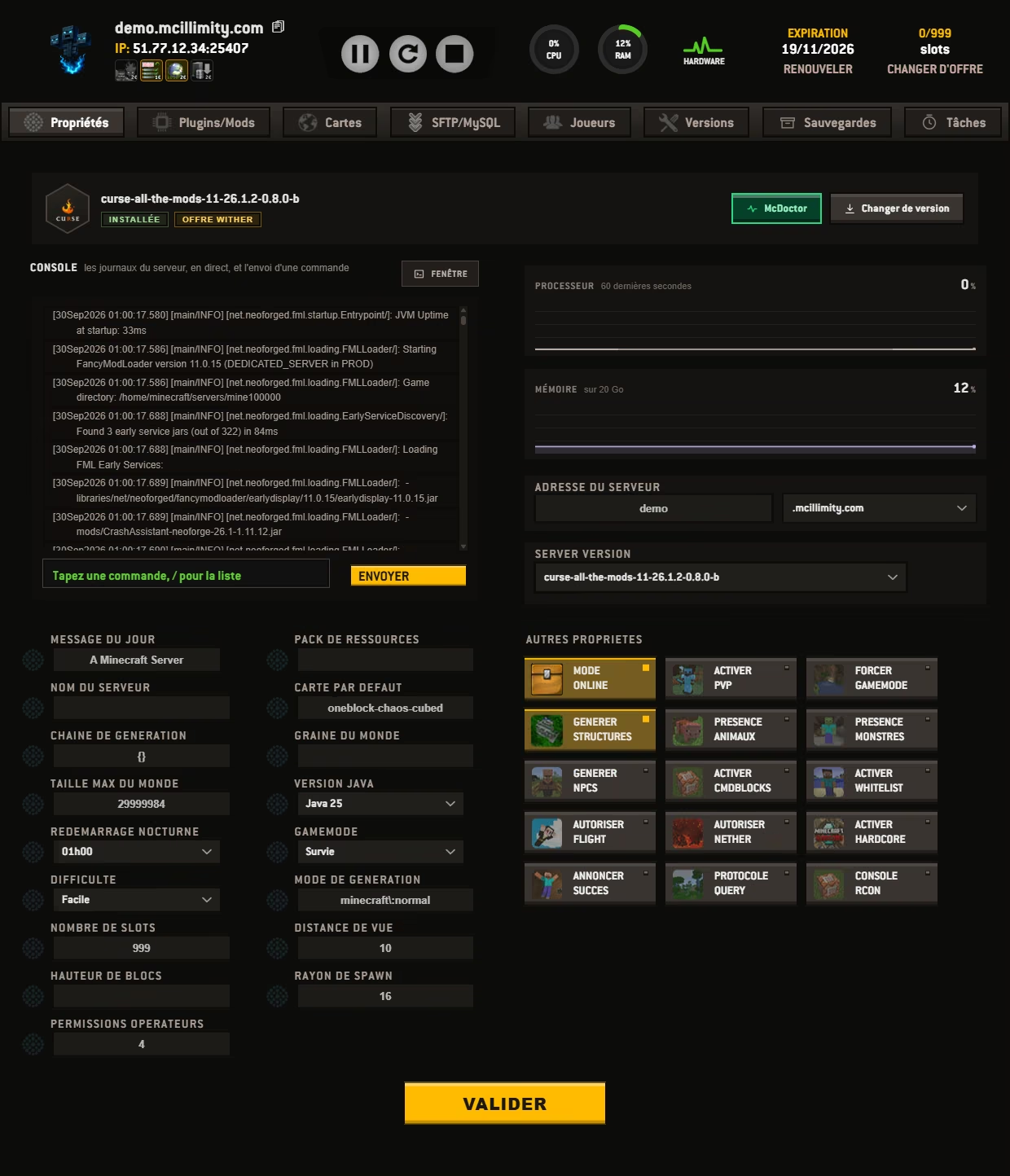
The Properties tab, as it opens. The screenshots on this page come from a real server, whose name, address and credentials have been replaced with those of a demo server.
The console takes up the left half because that is where you spend the most time when something is not cooperating. The two gauges on the right show what the server is using, down to the second. At the bottom, the game's configuration file, laid out in plain language: game mode, difficulty, PVP, whitelist, message of the day, view distance, operator permissions.
The other tabs
One tab, one job. You never have to hunt through menus to find a feature: it lives on the screen that bears its name.
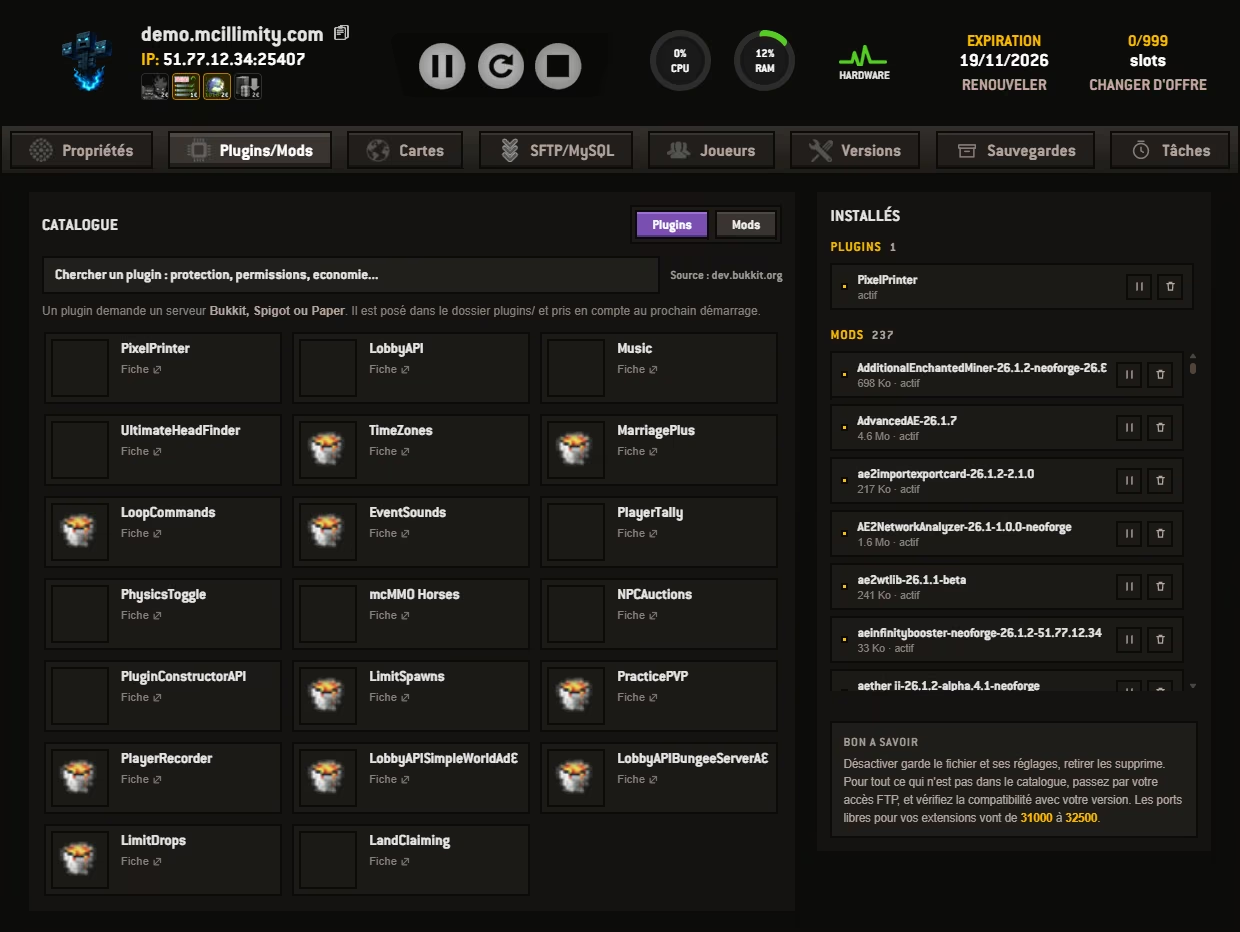 PLUGINS / MODS TAB
The catalogue, no FTP client needed
The catalogue holds 18,774, plugins and mods together, and installing one takes a single button. Plugins come from dev.bukkit.org, mods from Modrinth. A plugin needs a Bukkit, Spigot or Paper server, a mod needs Forge, Fabric, NeoForge or Quilt: the panel tells you before, not after. See the page plugins.
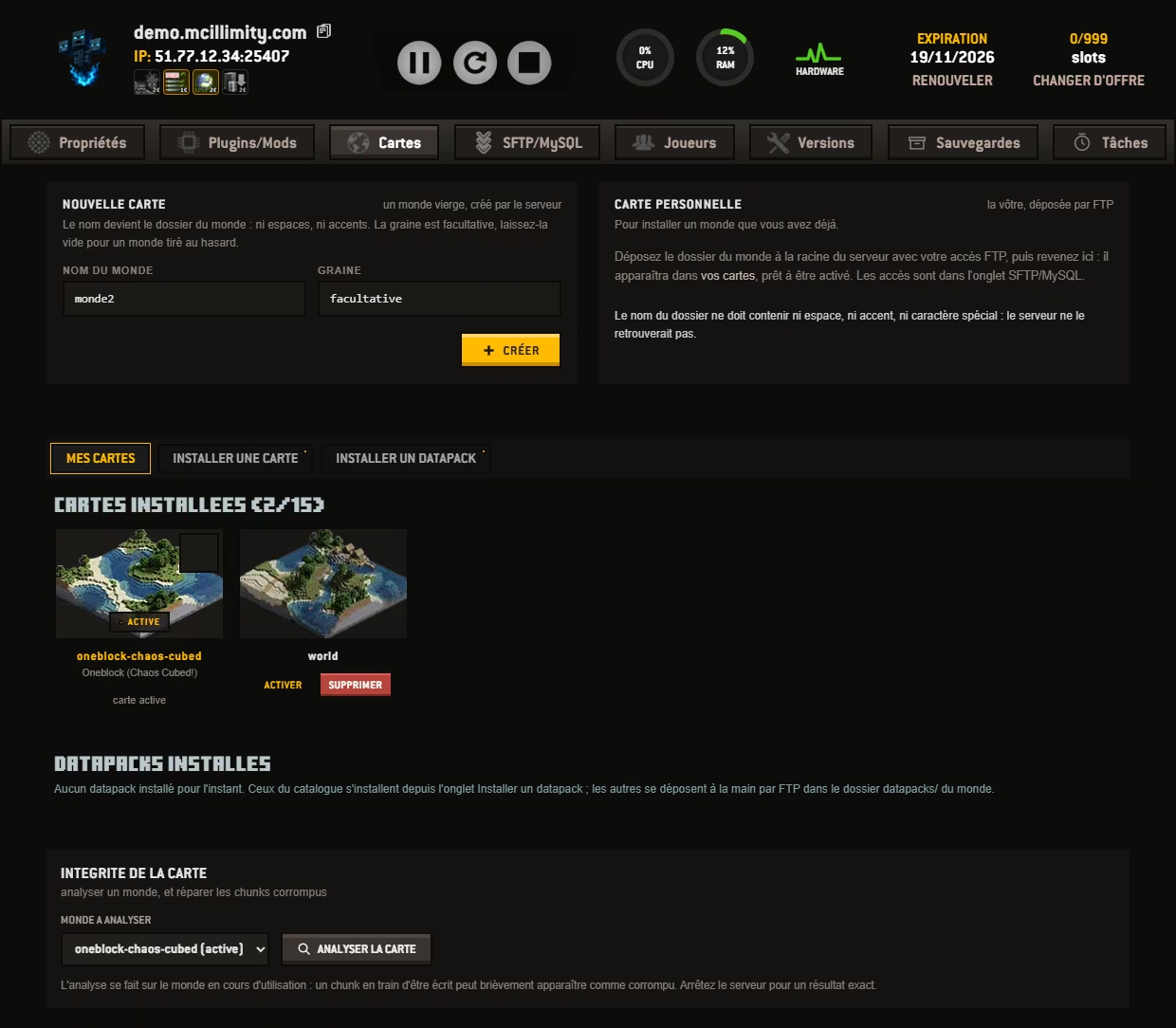 MAPS TAB
Worlds, and the means to switch between them
Create a blank world with its seed, upload your own by file transfer, or pick from the CurseForge catalogue without leaving the page. Datapacks install in the same place, into the world you choose. One active map, the others on standby: you switch from one to another.
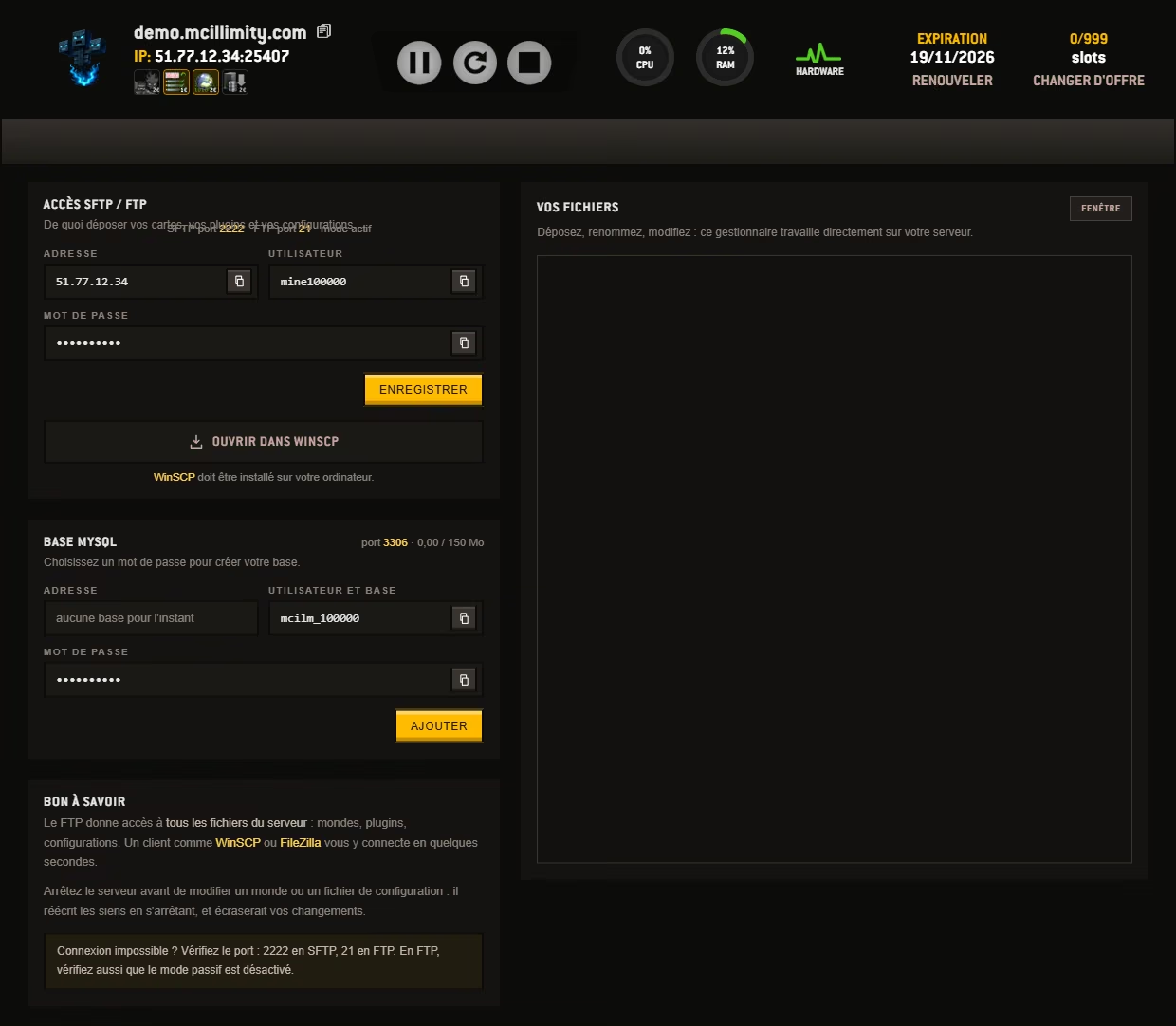 SFTP / MYSQL TAB
Every file on the server
Worlds, plugins, configuration files: file transfer opens up everything. Over SFTP, encrypted, on port 2222, or over classic FTP on port 21. A MySQL database comes with the plans that have a use for it. And to change three lines in a file, the panel's file manager opens it in the browser, with nothing to install.
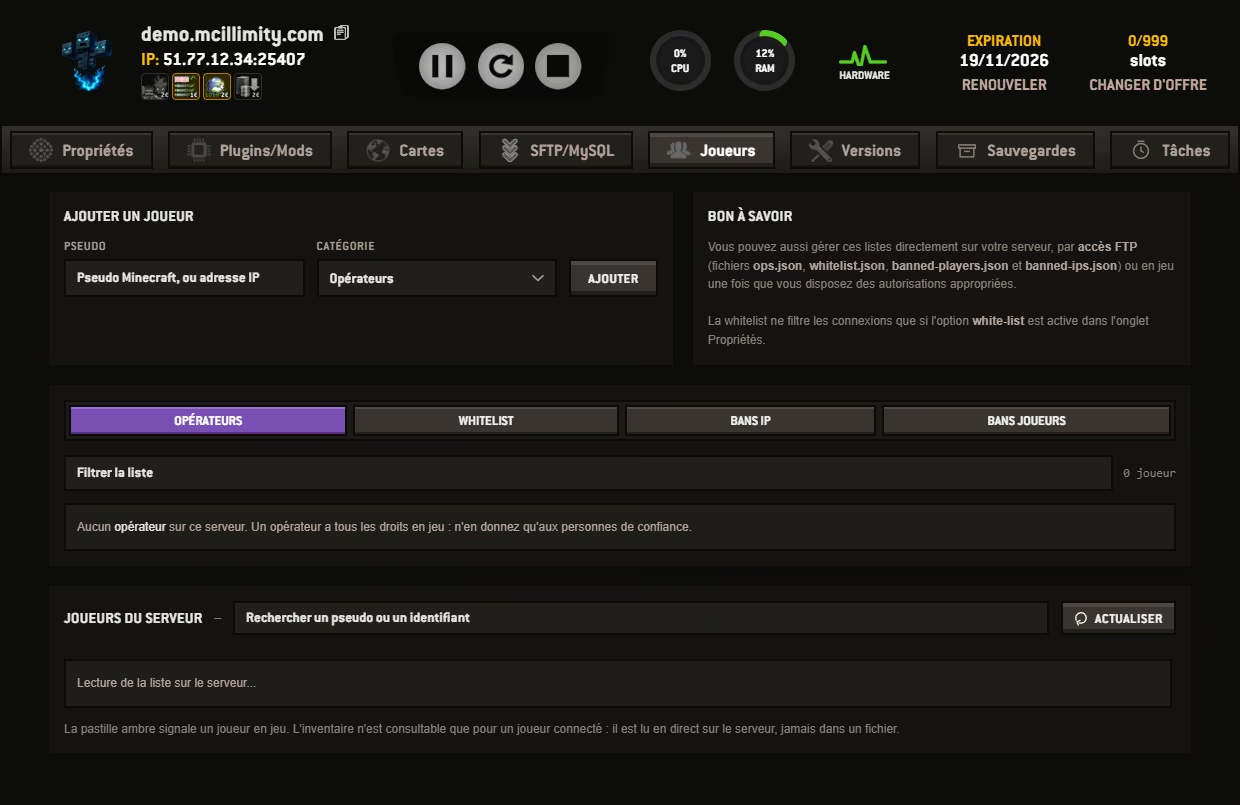 PLAYERS TAB
Who is here, and who will not be back
Operators, the whitelist and bans all fit on a single screen, along with the list of everyone who has visited. You grant rights, you kick, you ban an account or an address, without typing a command. And you open a player's inventory when an item went missing at the wrong moment.
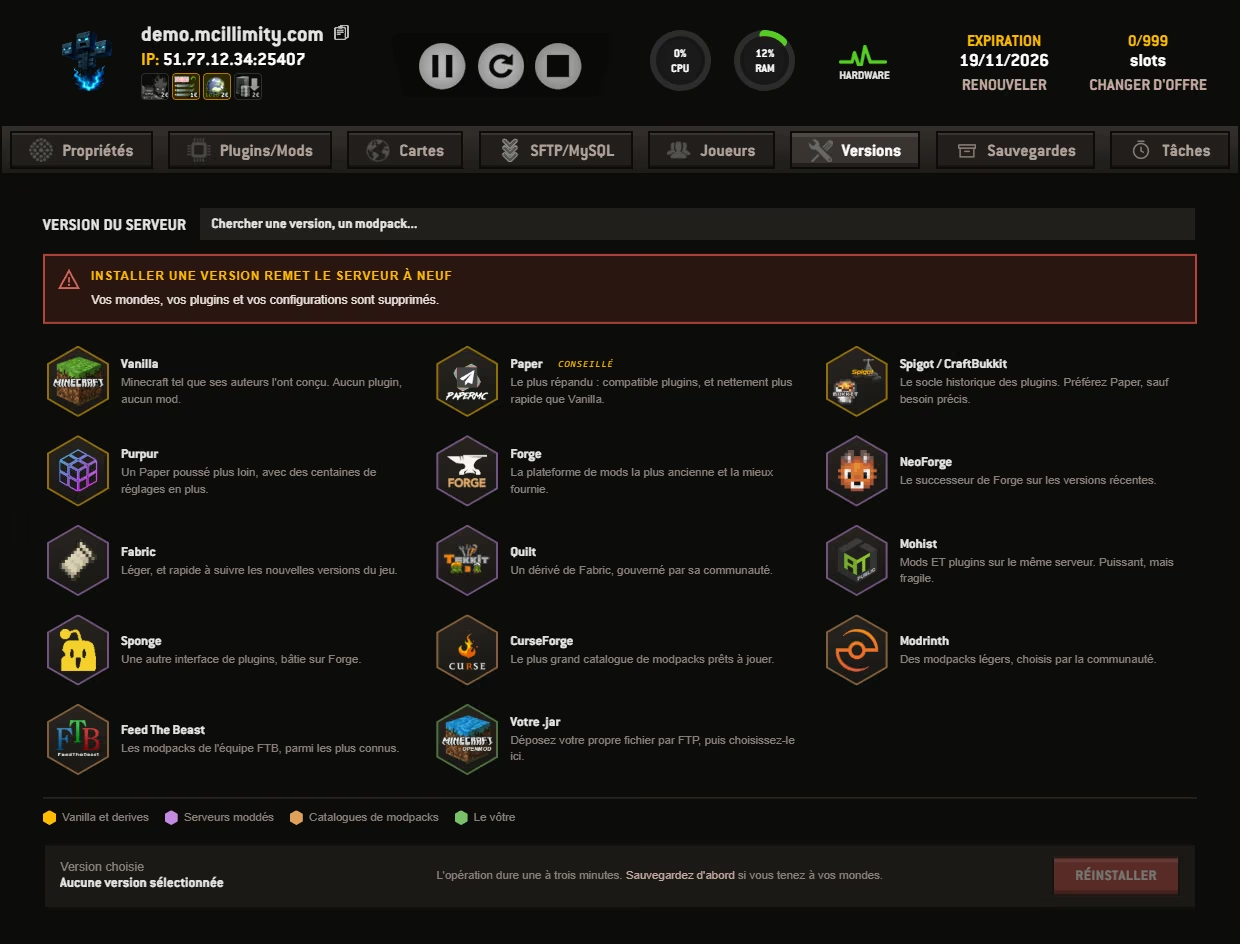 VERSIONS TAB
Switch engines in a few clicks
Vanilla, Bedrock, Paper, Spigot, CraftBukkit, Purpur, Mohist, Forge, NeoForge, Fabric, Quilt, the proxies, and the Curse, Modrinth and FTB modpacks. Installing wipes the server clean, so it erases the worlds: the panel says so in red before launching, and invites you to back up first. See versions and modpacks.
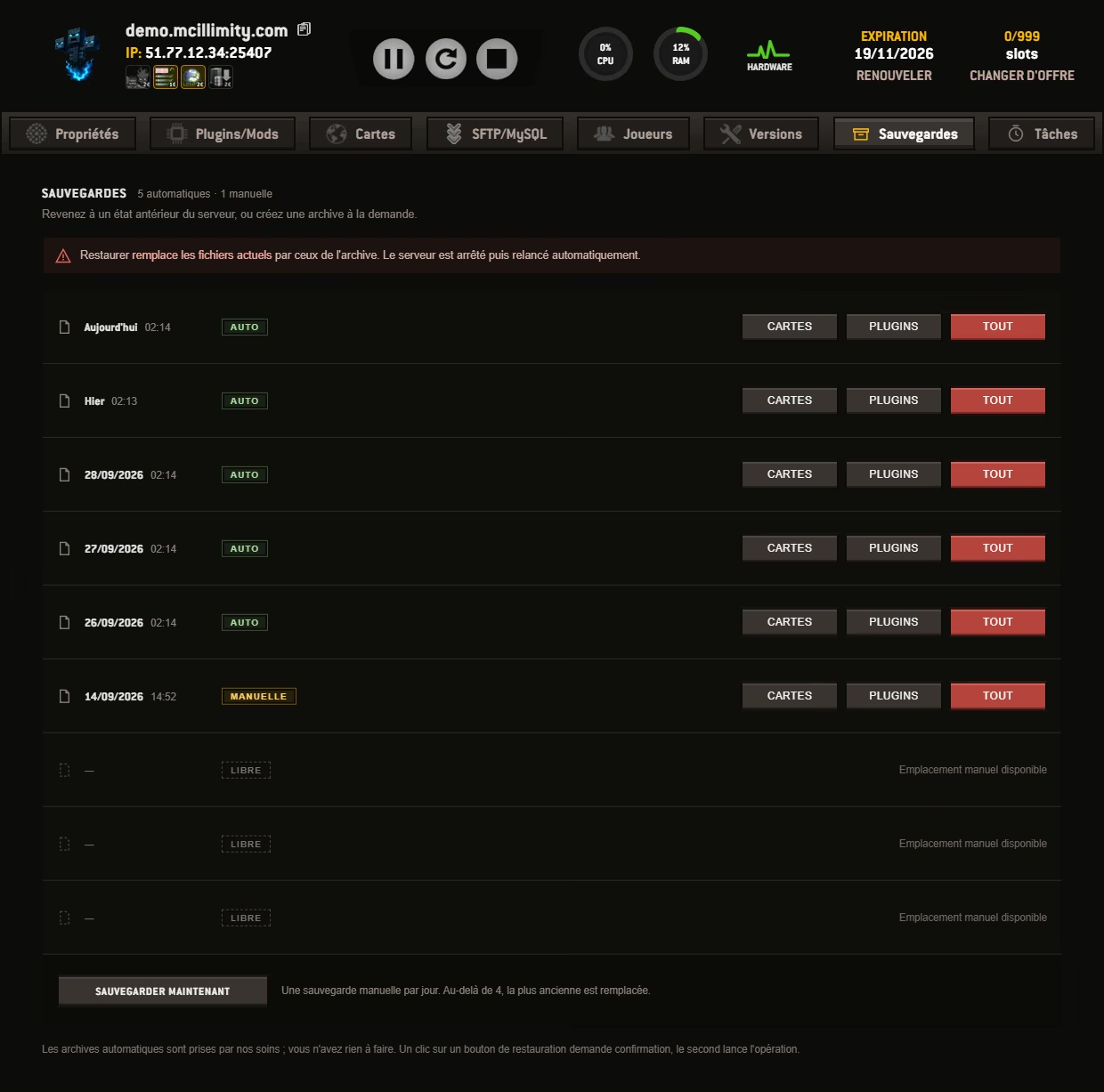 BACKUPS TAB
Back to yesterday
The automatic archives run on their own, and you keep four manual slots for the moments that matter: the day before a modpack, the day before an update. Restoring is done piece by piece, maps only, plugins only, or everything. See the backups page.
What costs extra, and what is included
We would rather say it here than let you find out in the panel. Almost everything above comes with the plan. Four things cost extra, monthly, and you see them on the order screen before you pay.
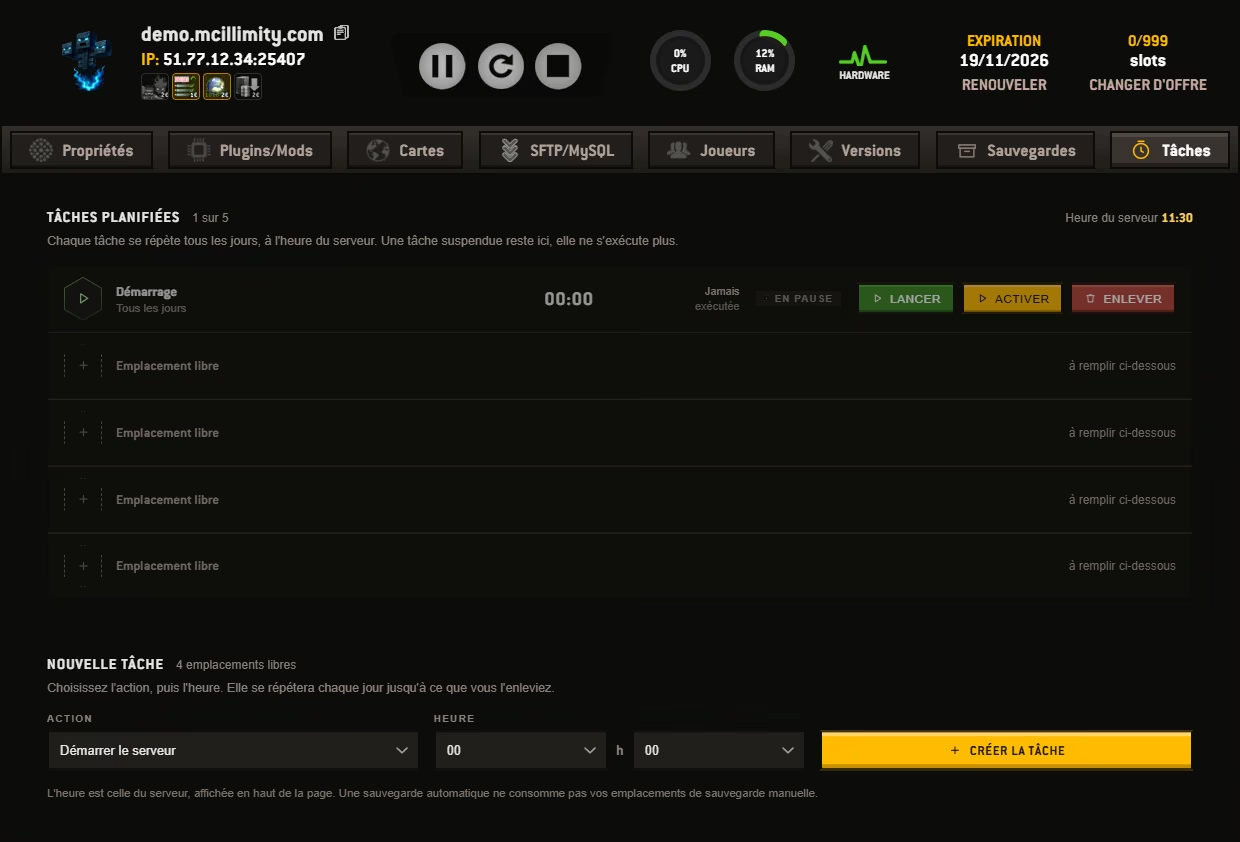
The scheduled tasks tab. It is the only one that does not come with the plan: it appears the day you take the option, and disappears if you stop it.
Scheduled tasks
Start, stop, restart, back up or run a command, every day at the time you set. For 1 euro a month.
Advanced backups
The Browse button, at 2 euros a month: it opens an archive and pulls out files one by one. The archives and full restores themselves are included.
Private domain
Your own domain name on the server. Not to be confused with the port-free address, which is included in every plan.
A faster processor
Moving to a newer-generation processor, for the modpacks that make a busy server struggle.
Sharing: delegated access, page by page
A server rarely rests on a single person. So the panel splits rights page by page, not in all-or-nothing blocks. You open the console to your moderator, the files to whoever sets up the plugins, the backups to whoever you like, and you leave the rest closed.
What that changes shows on a weekday evening: the server is reachable at all times, so a moderator can step in at three in the morning without waking you. You remove that access the day they leave the team.
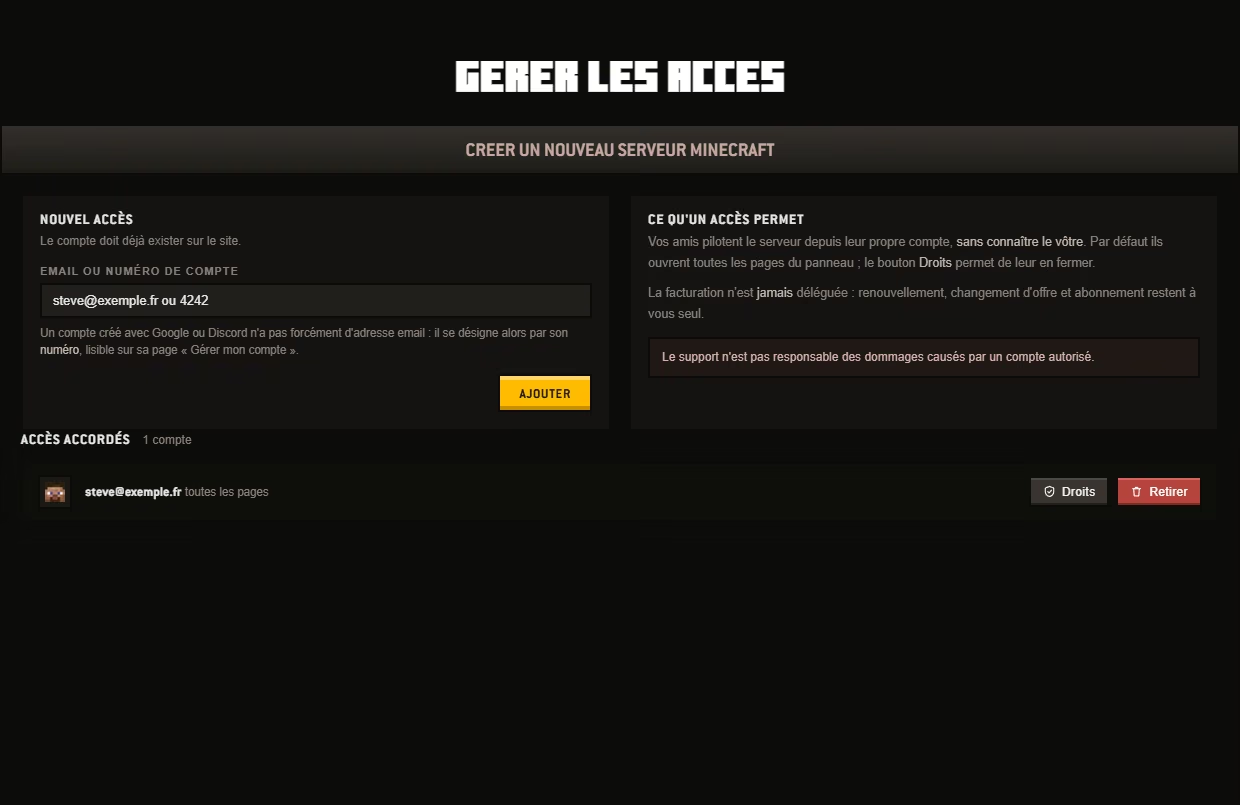
The access screen. Nine pages can be delegated, and billing is not one of them.
Nine pages can be delegated: settings, plugins, maps, file access, players, versions, backups, scheduled tasks and the viewer. You tick the ones the person should see, and the rest stays closed to them. There is no limit to the number of accounts you can open a server to.
One thing is never delegated: billing. Renewal, plan changes and the subscription stay with the account holder, and this is not a setting that can be loosened by mistake. Handing the console to a moderator therefore gives them no access to any payment method.
Delegated access stops at the page it was opened to: what you do not open stays closed.
Around the server: the customer area
The panel does not stop at a server's tabs. The same area holds your orders, your access, your account and your tickets. If you host several servers, they are all there, on the same page.
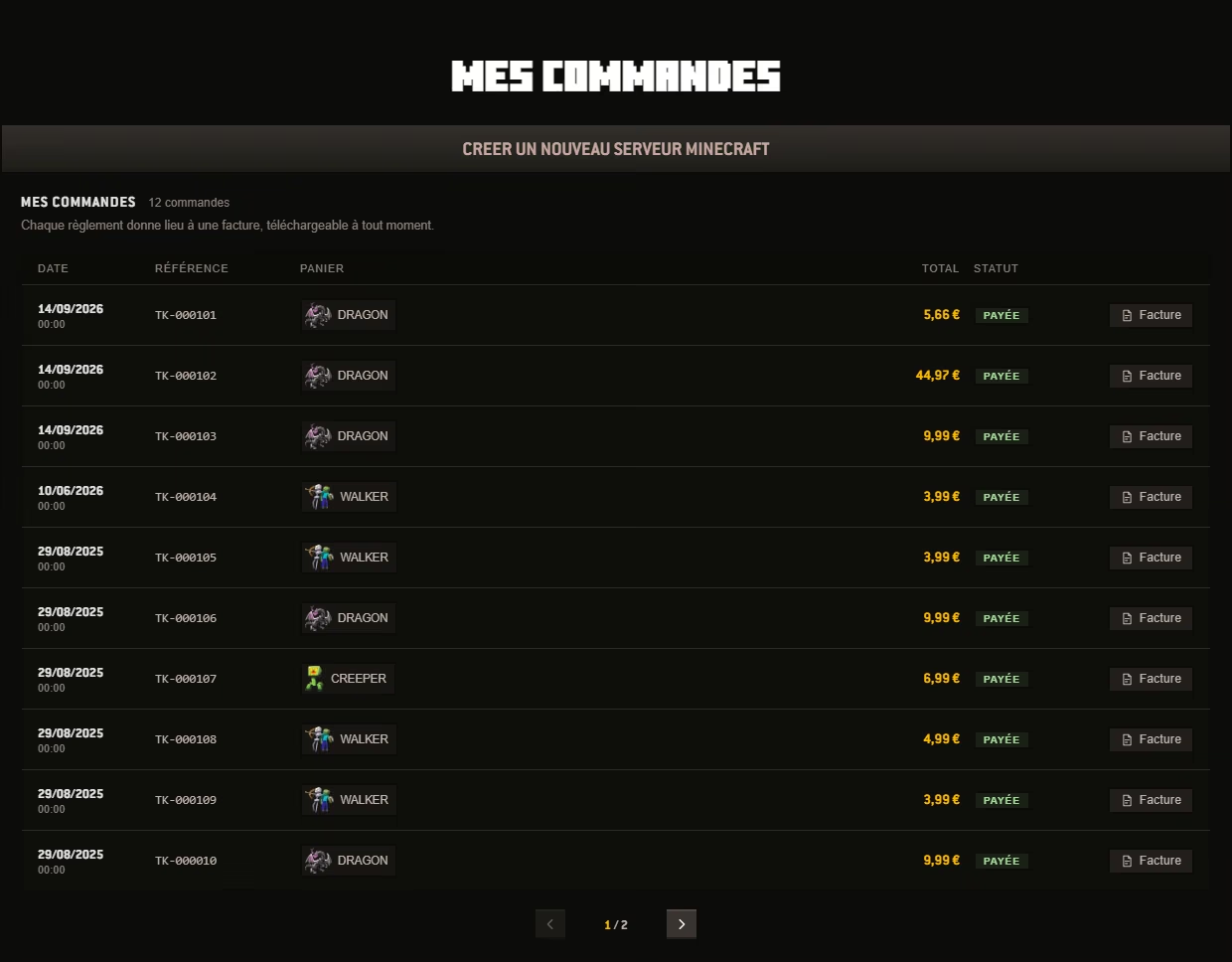
My orders. Every payment produces an invoice, downloadable at any time.
Pay ahead, or not
Renewal is done one payment at a time, or through a subscription you manage from the same page. Either way, the expiry date is written at the top of your server.
Move up, or back down
Moving to the plan above resets nothing: the server keeps its worlds and its plugins, only the resources change. See the plans.
A ticket, in French
Exchanges with support live in the same area, next to the server they are about. Opening a ticket does not require copying out your order number.
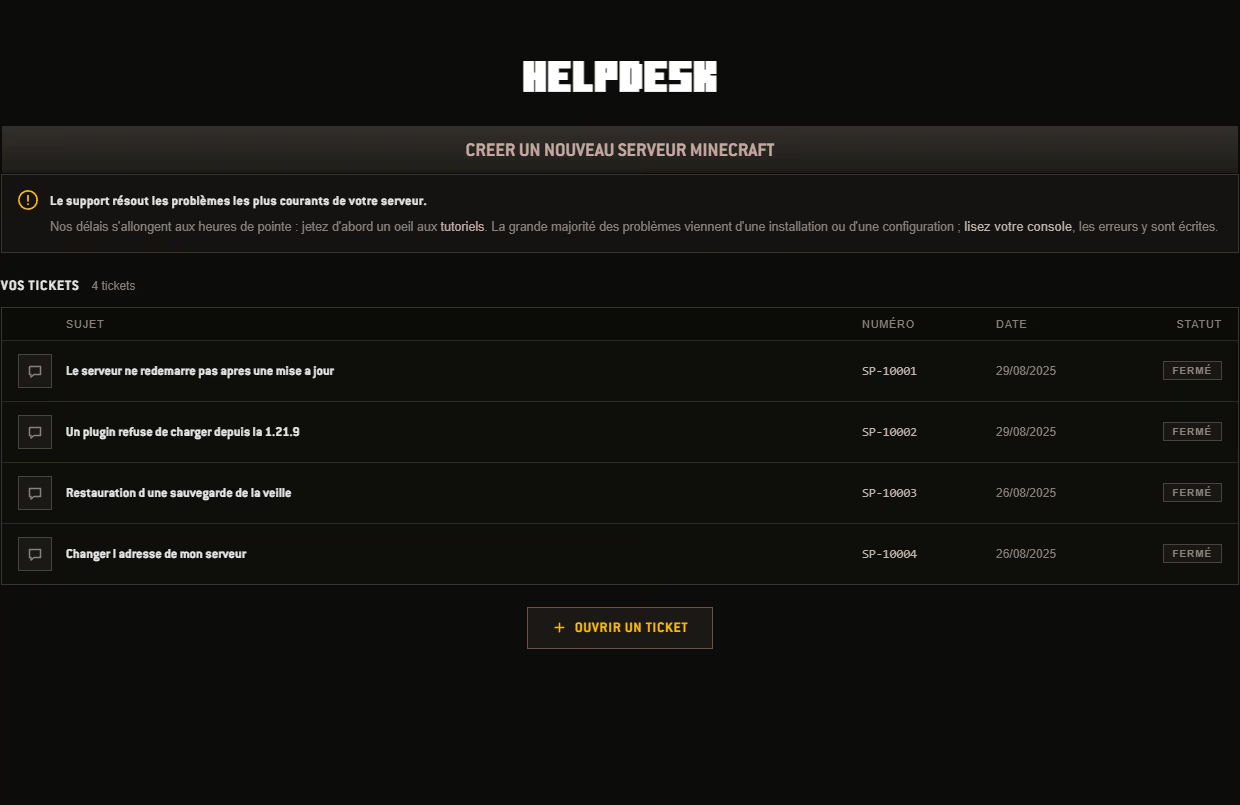
The helpdesk. Tickets remain available to read once closed.
The live console
This is the screen where the difference shows. The console shows the server while it runs: the connections, the warnings, the lines your engine writes second after second. You type a command, the reply follows, and it stays in the log for next time.
It is also the first place you open when something goes wrong. A plugin that refuses to load, a version that will not start: the line that explains it is right there, not in a file you first have to download. When the console is not enough, the ticket support, in French, takes over from the same customer area.
We wrote this console because we run the servers it drives ourselves. A home-made panel has no other reason to exist.
The panel is better tried than described
Ten days of trial, no bank card, on the same hardware as the paid plans.