
Your Minecraft host since 2012












Your Minecraft host since 2012
Find your server's panel, your backups and your invoices.
No account yet? Create an account
No bank card required: you only pay when you order a server.
Already have an account? Log in
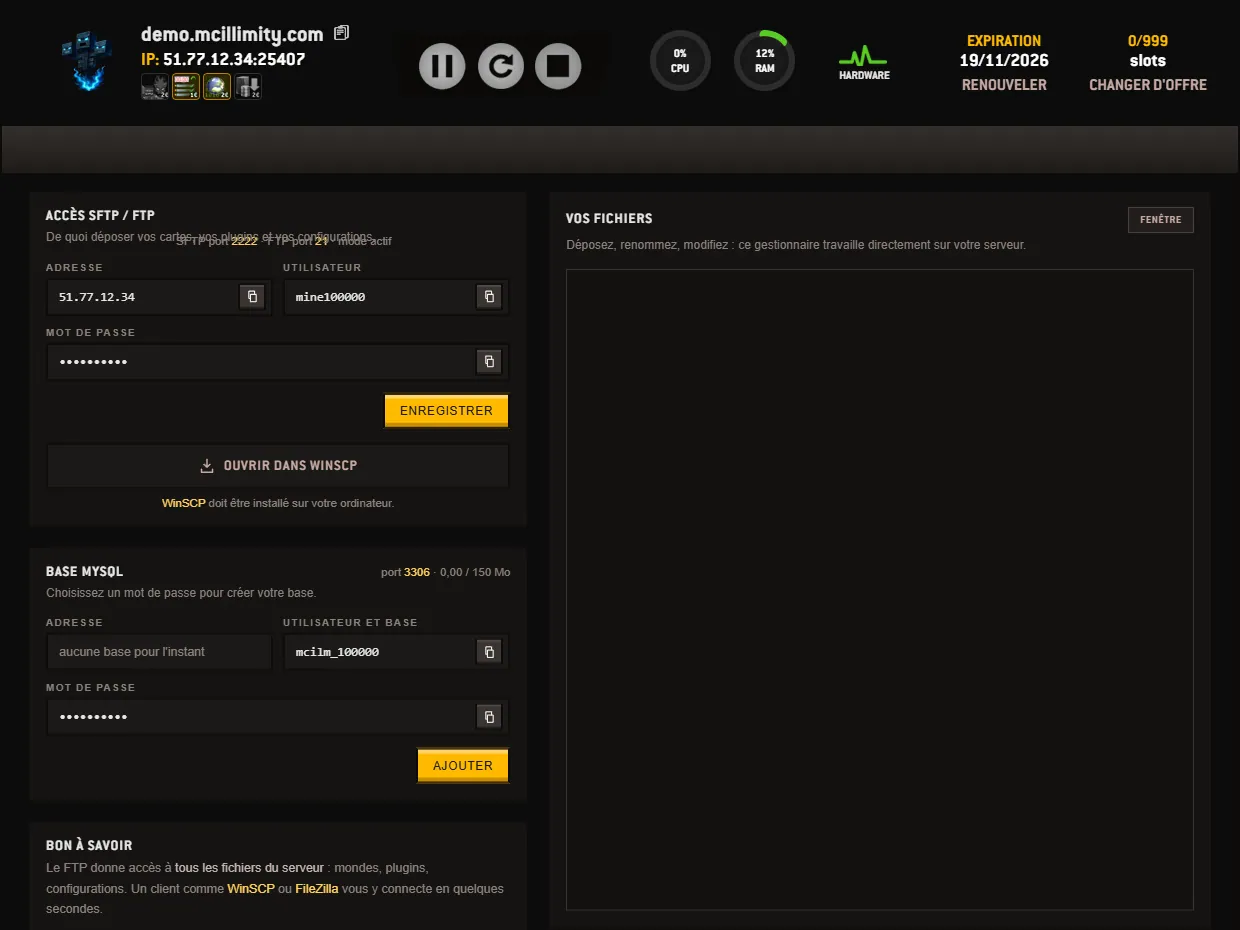
The SFTP / MySQL tab gathers everything related to your server's files. The screen reads in two columns: on the left your access details, on the right a file manager that opens by itself on the contents of the server. You can therefore work without installing anything, or connect your own transfer software.
The first box is titled SFTP / FTP ACCESS. Three lines are enough to connect: Address, Username and Password. Each has its copy button on the right, which places the value in the clipboard without you having to select it with the mouse.
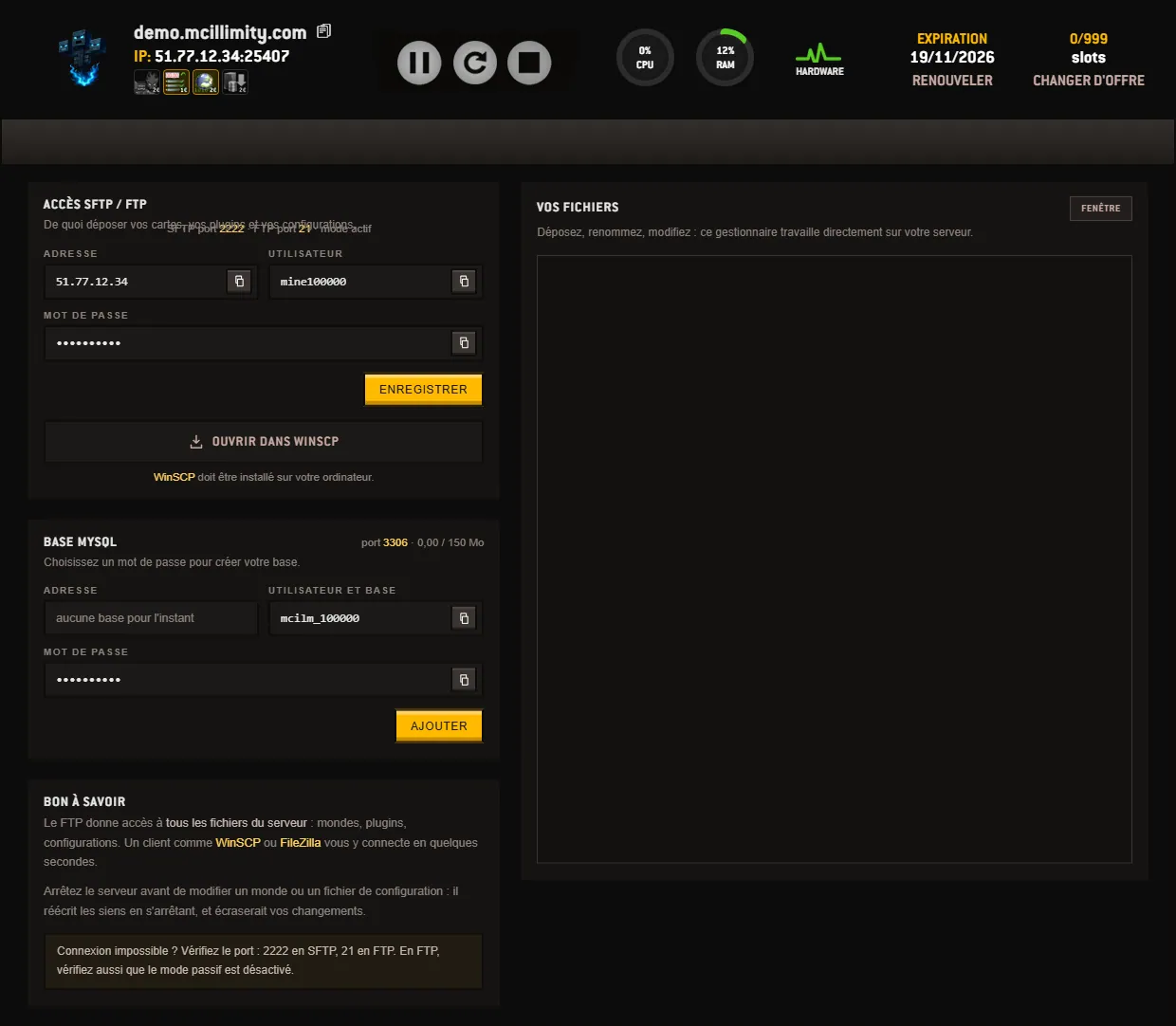
The password is an editable field, not a simple display. You replace it with the one of your choice, then click SAVE: it then applies to all your connections. The address and the username, on the other hand, are set by the server and cannot be changed.
The port reminder sits at the top of the box. It solves most connections that refuse to establish:
At the bottom of the same box, the OPEN IN WINSCP button launches the connection in WinSCP, credentials included, provided the software is installed on your computer. The panel says so just below. Another client works just as well, FileZilla for example, with the three values copied by hand.
The second box, MYSQL DATABASE, answers on port 3306 and shows the space used against the space available. It only appears on plans that include a database. The first time, you choose a password and the button reads ADD: the database is created. After that, the button becomes EDIT and is used to change this password. If you clear the field, the button turns into REMOVE and the database is deleted. Above it are two lines, each with its copy button: the Address of the database, and Username and database, a single value that serves as both the username and the database name. As long as no database exists, the Address line simply states that there is none yet.
The right-hand column, YOUR FILES, is the online manager. It works directly on the server: you upload, you rename, you edit a file without downloading it. For a longer session, the WINDOW button reopens the same manager in a separate, wider window. As long as the server is not installed, a message says so in place of the box; the access details on the left, however, already work.
One precaution applies to both routes. Stop the server before touching a world or a configuration file: when stopping, it rewrites its own files and would overwrite your changes. The stop button is at the top of your panel, above the ribbon of tabs.
This tab opens all of the server's files: worlds, plugins, configurations. The full tour of the screens is described on the page the panel, and the other tutorials detail the most common operations. If a connection still resists despite the right ports, open a ticket from your customer area.
 Continue with Google
 Continue with Discord