
Your Minecraft host since 2012












Your Minecraft host since 2012
Find your server's panel, your backups and your invoices.
No account yet? Create an account
No bank card required: you only pay when you order a server.
Already have an account? Log in
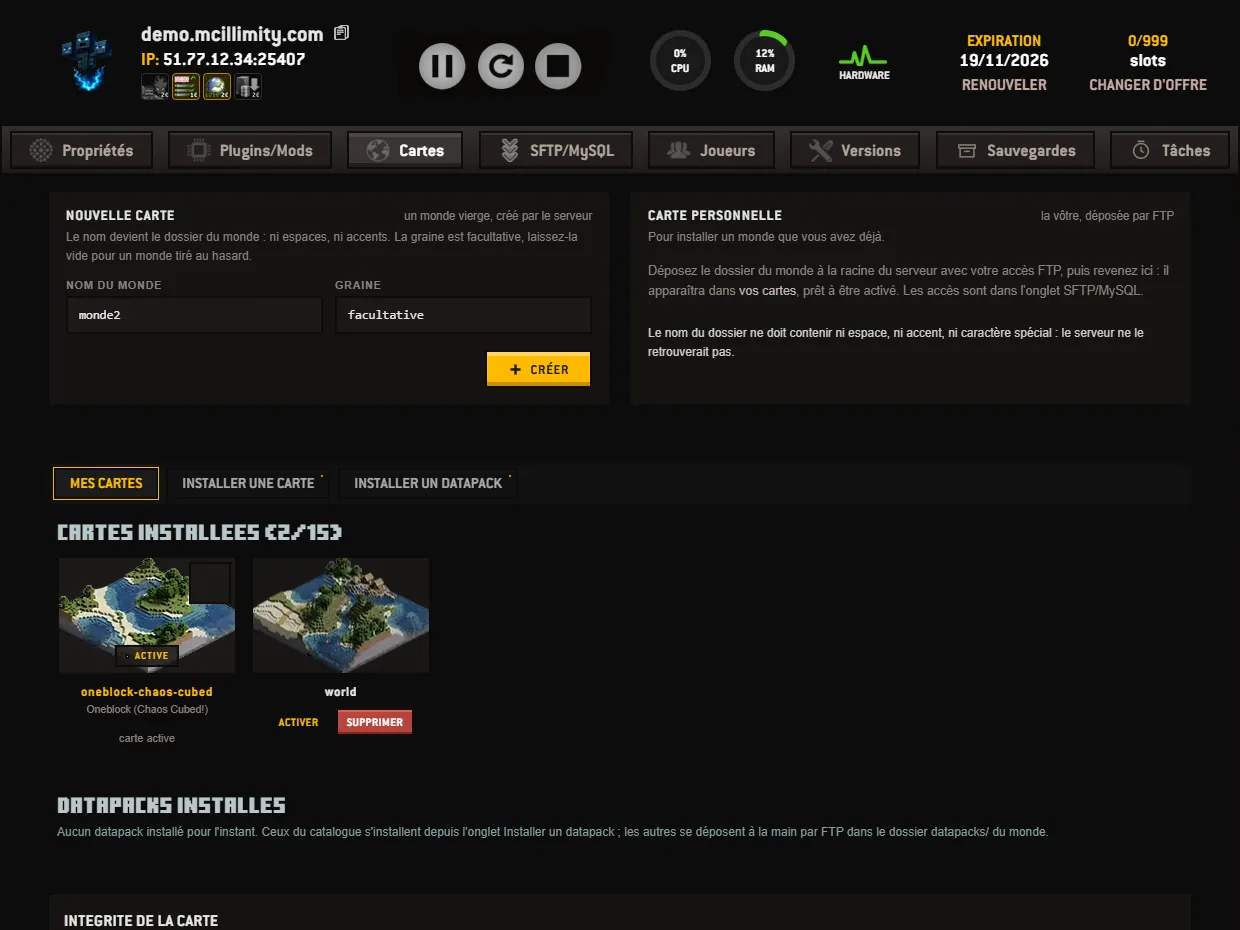
The Maps tab brings together everything related to the worlds of your server: creating one, uploading your own, choosing the one that opens to players.
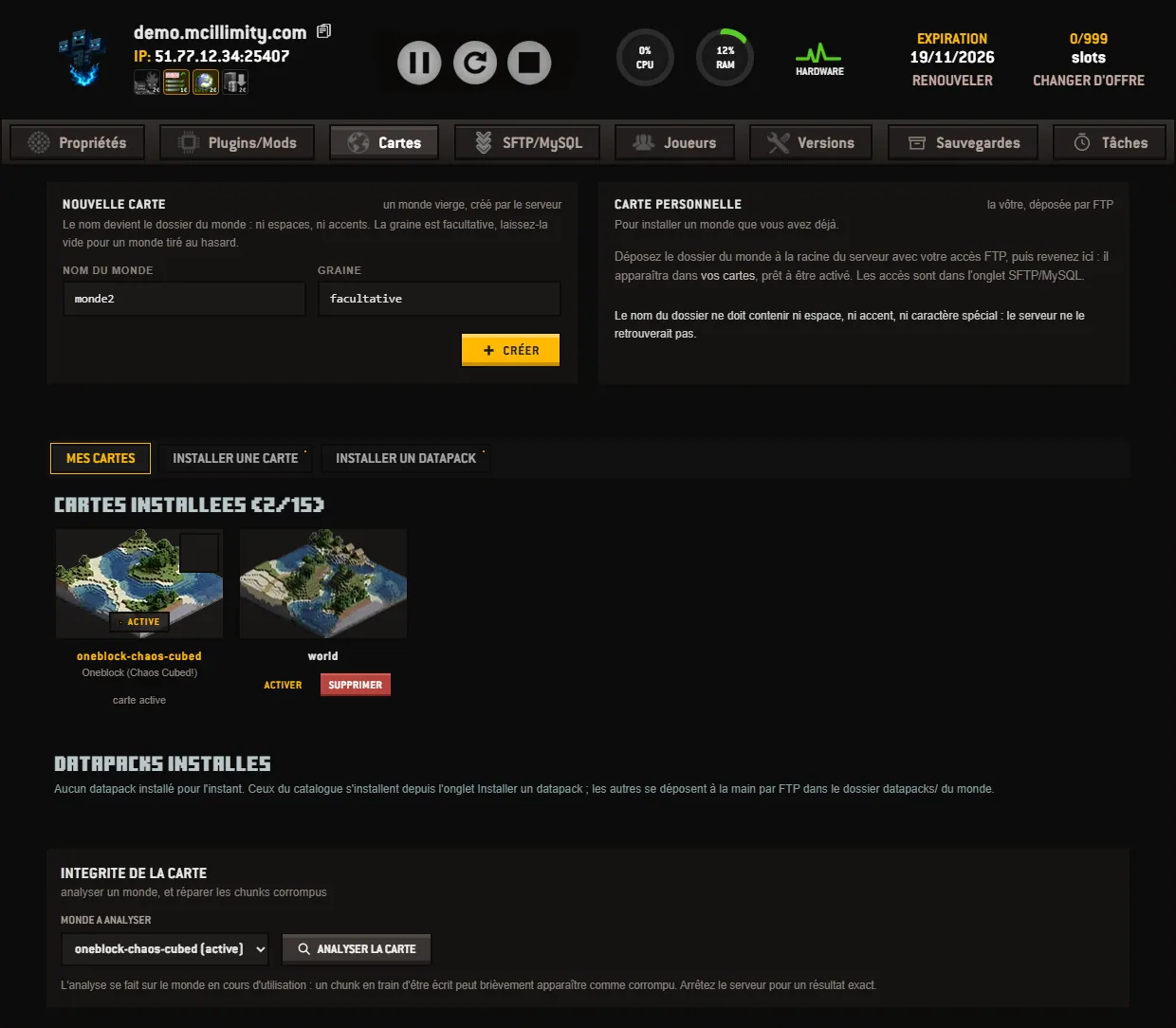
The header is split into two frames. On the left, NEW MAP, a blank world created by the server. On the right, CUSTOM MAP, the one you bring yourself. Below come your installed maps, the datapacks, then the integrity tool.
For a new world, fill in World name, then Seed if you have one. The name becomes the world's folder: no spaces, no accents. The seed remains optional, and an empty field gives a randomly generated world. The CREATE button starts the generation.
If you already have a world, upload its folder to the server root with your FTP access, whose credentials are in the SFTP/MySQL tab. It then appears among your maps, ready to be activated. Its name must contain no spaces, accents or special characters, otherwise the server will not find it.
The INSTALLED MAPS section lines up your worlds with their thumbnail and reminds you how many you have out of the allowed number. The one in service carries the ACTIVE label; the others wait, with two actions: ACTIVATE to hand it over, DELETE to erase it.
Above this list, three tabs: MY MAPS, INSTALL A MAP and INSTALL A DATAPACK. The second opens the CurseForge catalog. The installation asks for a NAME OF THE WORLD TO CREATE, from 3 to 30 letters, digits, hyphens or underscores. The map is placed in a new world which becomes the active map: your existing worlds stay on the disk.
The third tab does the same for datapacks, with one nuance: a datapack is installed inside a world. You pick its destination in the INSTALL INTO WORLD list, and the archive is placed in the datapacks/ folder of that world. It takes effect at the next startup, or right away with /reload from the console.
Further down, INSTALLED DATAPACKS lists the ones in place, with their world, their size, their date and an UNINSTALL button. Removing the archive touches neither the world nor its progress, but the recipes, functions and loot tables of the pack stop working.
MAP INTEGRITY, at the very bottom, checks a world. Choose it in WORLD TO ANALYZE, then click ANALYZE THE MAP. The analysis reads the region files, changes nothing, and answers in three ways:
Analyze with the server stopped for an exact result: a chunk being written briefly looks corrupted. When chunks are flagged, a button offers to repair them, and this operation deletes chunks. Unreadable chunks are erased so that Minecraft regenerates them, chunks overloaded with entities are emptied, and whatever they contained is lost. The server must be stopped, and a backup is taken beforehand.
You thus keep several worlds and switch from one to another. Before a delicate operation, go through the backups; the other screens are described in the panel, screen by screen.
 Continue with Google
 Continue with Discord